Existing building parameters
The building conditions the calibration captured, next to what the selected energy code requires.
Where: Analysis › Benchmark, right side
The panel uses the same tabs and parameters as the ECM Explorer, but read-only:
- Existing Conditions (gray) - The value captured by the calibration.
- Selected Energy Code (blue) - The value the energy code requires, where it sets one.
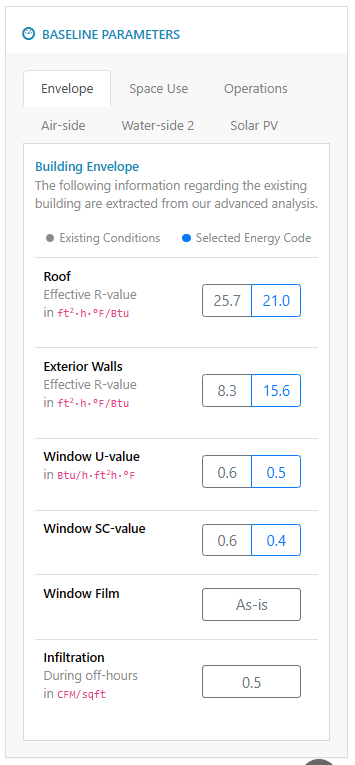
Comparing the two shows where the building falls short of code. For example, the Space Use tab says whether the lighting power density is higher or lower than the code requires, and the lighting and plug load charts show the captured daily profiles.
See the ECM parameter reference for what each parameter means.
AI-suggested measures
- Click the panel’s AI button and confirm with Generate Insights.
- The AI rates each measure. Stars next to a parameter show its priority: more stars mean a higher priority.
The ⭐ AI Suggested ECMs switch shows or hides the stars. The setting is saved for the baseline, so it also shows or hides them in the ECM Explorer.