Meter data
The calibration matches the model to your meter data, so its quality decides how accurate the results are.
For: AnalyzerWhere: Home › Meter Data card
You have 12 months of meter data (13 months of interval data is recommended): an interval data file for hourly baselines, or monthly bills for monthly baselines. See Supported data formats.
Steps
- On Home, click the baseline’s Meter Data card.
- Add the electricity data:
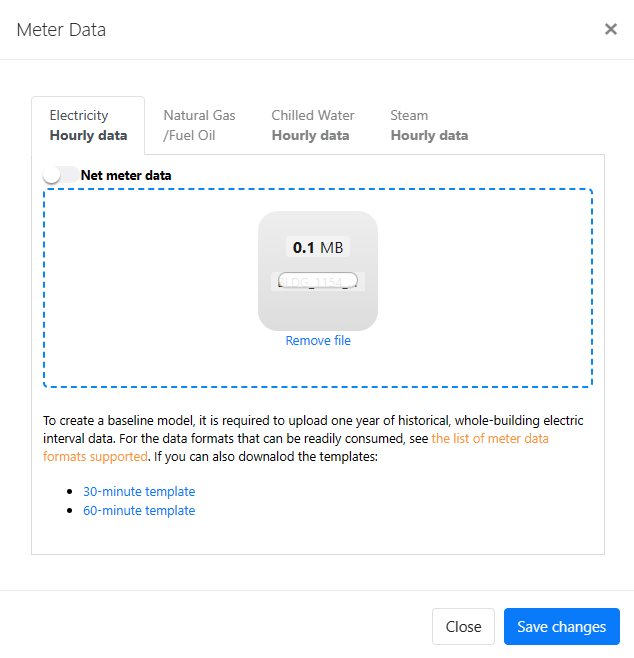
- Hourly data - On the first tab, Import Utility Bills (AI-assisted), drop your interval data file into the upload area and click Import & Populate Energy Data. InverseAudit recognizes the file’s format automatically. The Electricity (hourly data) tab then shows a monthly summary and the data quality checks.
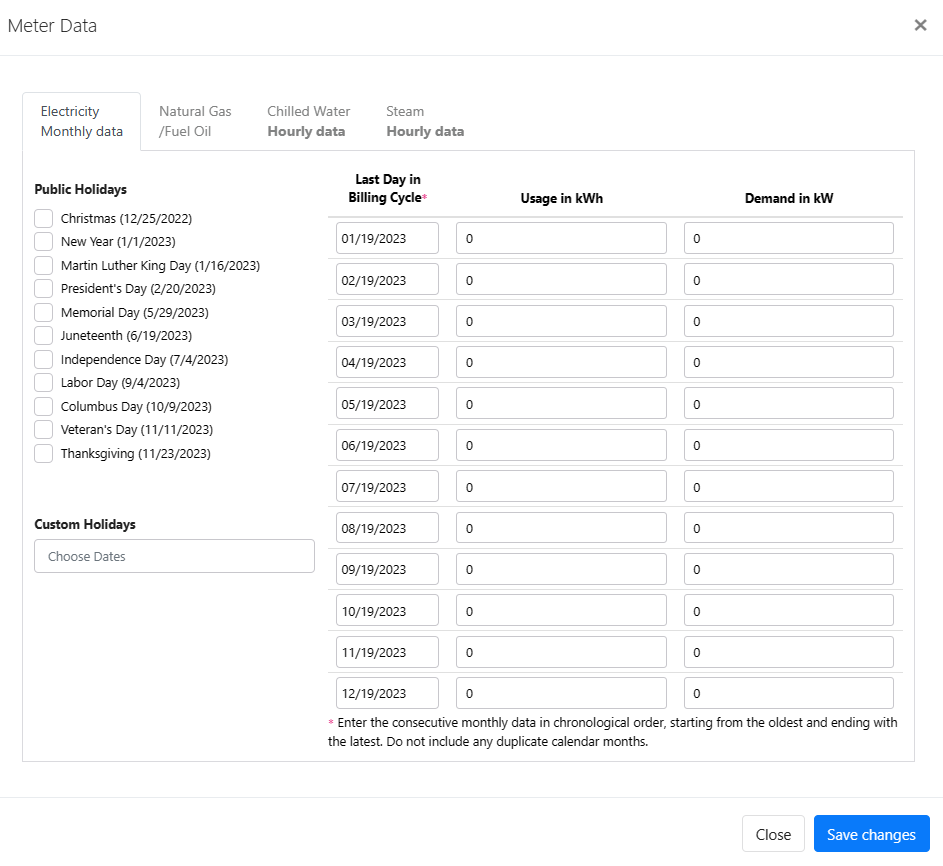
- Monthly data - Complete the required fields for each month on Electricity (monthly data), or import your bills on the first tab. If natural gas is used but its data is unavailable, enter zeros so that it is not used during the calibration.
- Enter monthly natural gas or fuel oil use on the Natural Gas/Fuel Oil tab. If the building uses district chilled water or steam, upload its 60-minute data on the Chilled Water or Steam tab.
- Click Save meter data.
On a calibrated baseline, uploading or importing new data, or saving changed values, sends the baseline back to preparation. Check inputs and run the calibration again afterwards. Saving without changes keeps the calibration.
What you’ll see next
The Meter Data card no longer shows Pending. When all four cards are done, check inputs and run the calibration.
Import utility bills with AI
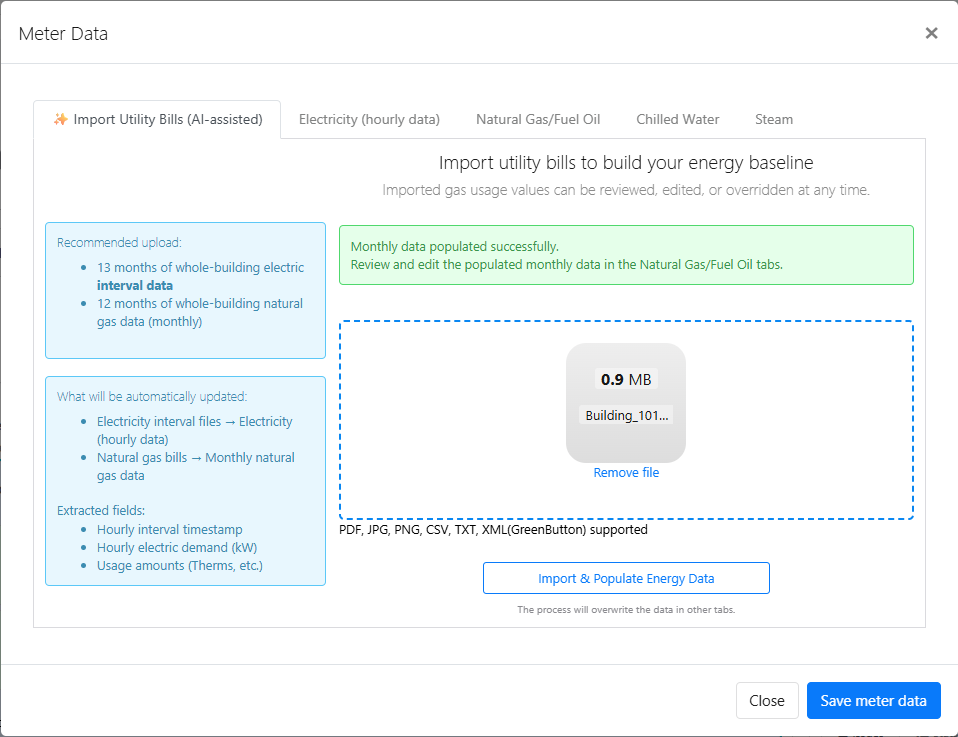
The first tab can fill in the fields for you. Upload your utility bills (and, for hourly baselines, your interval data file) and click Import & Fill Monthly Data (monthly baselines, tab AI-assisted Import (Optional)) or Import & Populate Energy Data (hourly baselines, tab Import Utility Bills (AI-assisted)). Check the values on the other tabs before you save.
You can upload up to 50 files of up to 40 MB each: PDF, JPG, PNG, XLS, XLSX, CSV, TXT or XML (Green Button), with at most two CSV or TXT files and one Excel file. Importing again overwrites the data on the other tabs.
Missing data and outliers
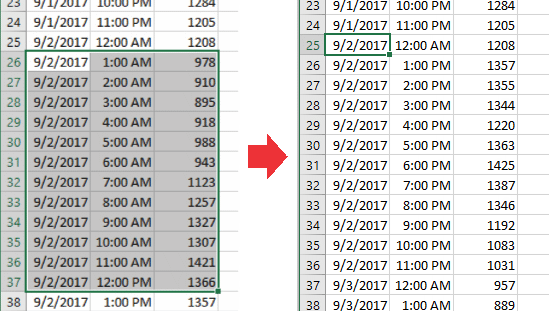
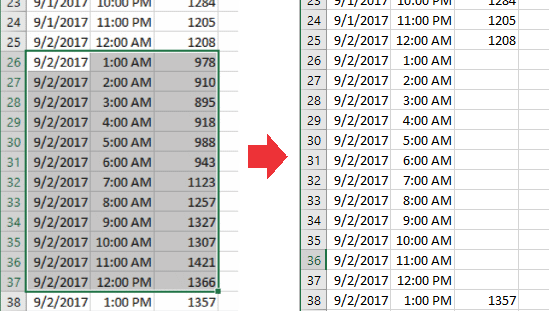
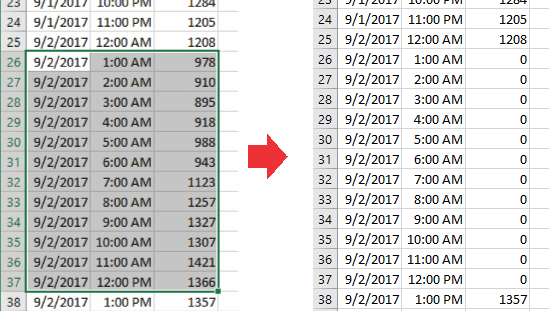
Treat readings that don’t represent actual energy use as missing data. Up to 2,500 hours of data points can be missing, and the data must cover at least 9 months. To exclude readings, edit the file in Excel or any text editor and either:
- remove the entire row, including the date, or
- fill the readings with zeros or blanks, keeping the dates.
The examples below are all acceptable in a CSV (comma-separated values) file. For Green Button data, use an XML editor.
If something goes wrong
My interval data file won't import
Check that the file matches one of the supported data formats, and that it covers at least 9 months with no more than 2,500 missing hours. If it still won’t import, contact support and attach the file.
The annual electricity use looks doubled or halved
The file’s unit was probably read as kW instead of kWh, or the other way around. Put the unit in the file as described in Supported data formats.