Rates
Select the utility rates, so costs, demand charges and incentives are calculated correctly.
For: AnalyzerWhere: Home › Rates card
Steps
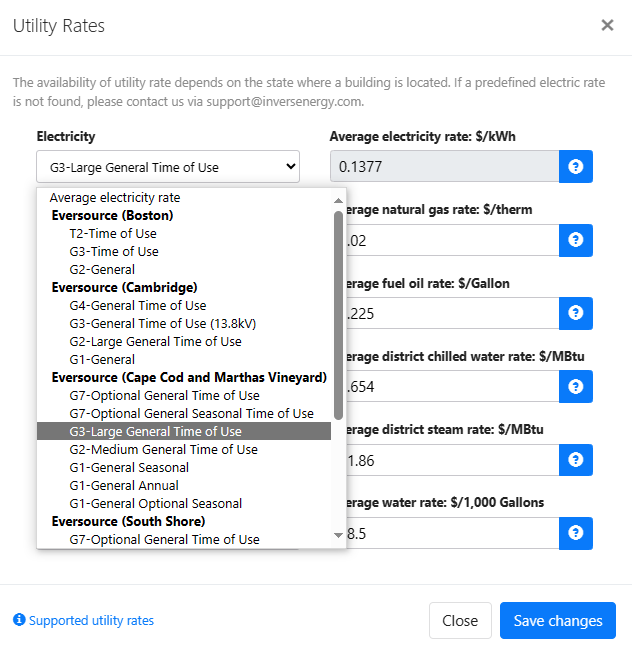
- On Home, click the baseline’s Rates card to open Utility Rates.
- Select your utility and service rate for each energy source. If your utility’s rates aren’t available, use the default average rate we offer or your own average rate.
- Click Save changes.
On a calibrated baseline, saving changed rates sends the baseline back to preparation. Check inputs and run the calibration again afterwards.
What you’ll see next
The Rates card no longer shows Pending. When all four cards are done, check inputs and run the calibration.
Average rates
With average rates you can still analyze your building, but demand cost savings and utility incentives aren’t calculated.
If you can’t find the rate structure you want to use, or you find large discrepancies in a calibrated model, send us your utility name and service rate through Contact support. Your rate will usually be available within a couple of days, and we will let you know when it is ready.