Create a baseline
A baseline holds your building’s information and data, and becomes its calibrated energy model.
For: Anyone with an accountTakes: 2 minutesWhere: Home › Baselines
Have the building’s full postal address ready, and know whether your electricity data is hourly (interval) or monthly. See What you need.
Steps
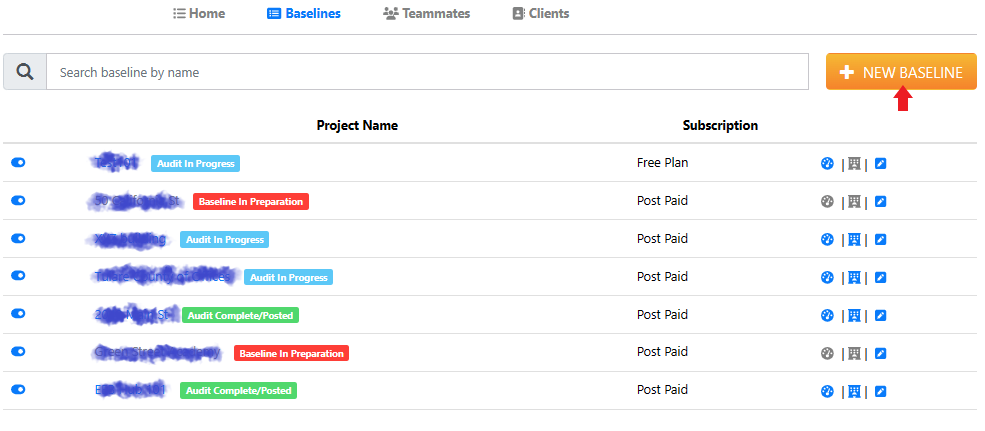
- On Home, open the Baselines tab and click Create Baseline.
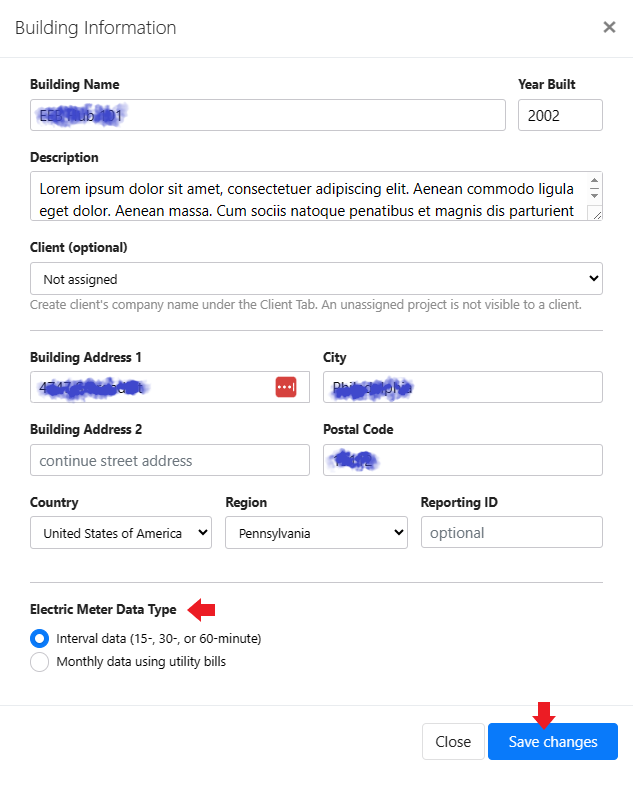
- In the Building Information window, enter a building name, the year built and a description. You can also assign a client. A baseline that isn’t assigned to a client isn’t visible to clients.
- Enter the building’s full postal address. InverseAudit uses it to find the building’s footprint on the map and to pick the weather data for the calibration.
- Under Electric Meter Data Type, choose Hourly if you have interval data (15-, 30- or 60-minute) or Monthly if you have utility bills. Interval data gives a more accurate model.
- Click Create.
What you’ll see next
The baselines you’re working on appear on the Home tab under Pinned Baselines. Use the Pin switch on the Baselines tab to pin or unpin a baseline. Benchmark and Energy Audit list only pinned baselines, and the Dashboard shows only pinned baselines with a posted audit.
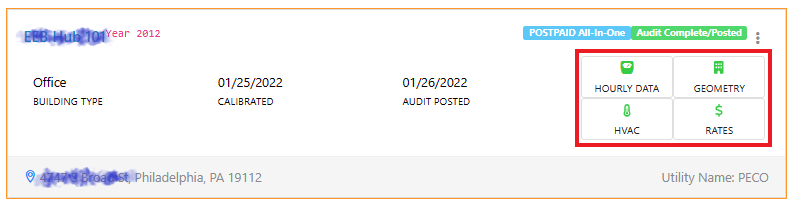
Each pinned baseline has four cards to complete: Meter Data, Geometry, Systems and Rates. A card shows an orange Pending badge until its data is saved.
Change the building information
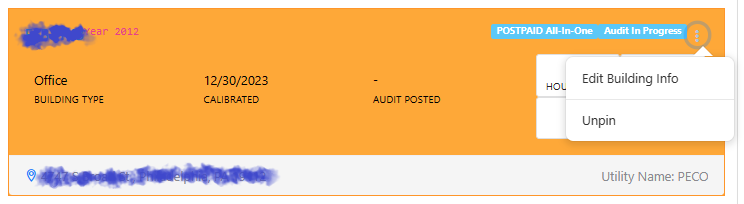
Open the ⋮ menu on the baseline’s card and choose Edit Building Info, or click Edit next to the baseline on the Baselines tab. The window shows Interval data and Monthly data in place of Hourly and Monthly, and Save changes in place of Create.
Changing the postal code or the electric meter data type marks the Meter Data and Systems cards incomplete again, and a calibrated baseline goes back to preparation.