
Enter a year’s bills
Enter a tracking year’s electricity and natural gas bills in the Bills dialog: type them or fill them in from the bill files with AI, with each bill’s last day of billing period, and gas in therms or CCF.
For: AnalyzerWhere: Analysis › Savings Tracking › Tracking years
On this page
Open the Bills dialog
On the Savings Tracking page, click Add bills or Edit bills on a year’s row, or + Add a year for the next year. You enter the bills; your client sees them read only.
The dialog has the 12 months on the left and the rest on the right (below the table on a narrow screen):
- First month - The year’s first month. The year’s 12 months are shown next to it.
- Gas bills are in CCF - When the building uses natural gas. See Gas bills in CCF.
- Bill files - The bill files for this year, with Add files and Fill from the bills. See Fill from the bills with AI.
- Changes this year - Anything that changed the building’s energy use this year apart from the measures: occupancy, operating hours, equipment added or removed. It’s shown with the year’s results.
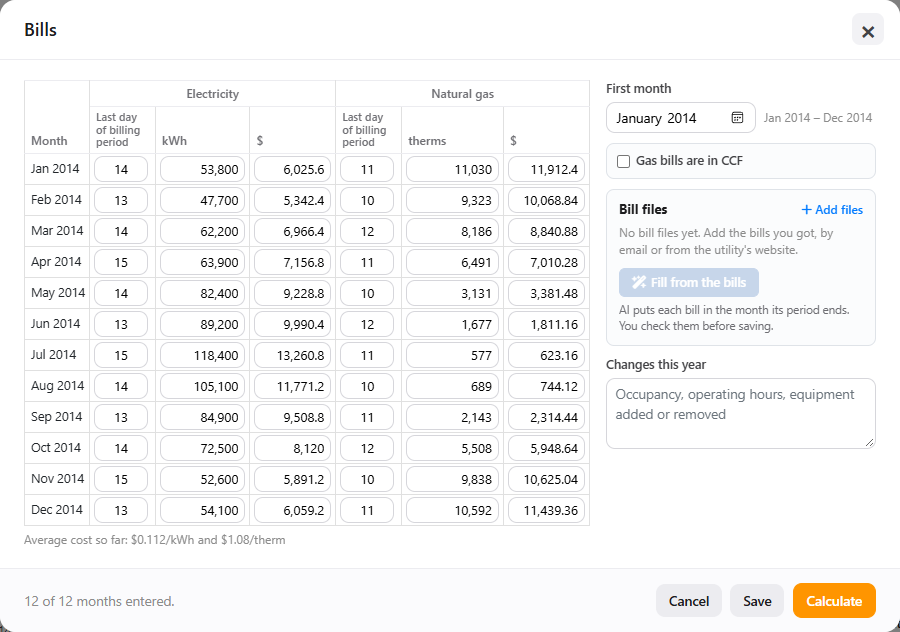
Enter the bills
Each row is a month. For Electricity, and for Natural gas when the building uses it, enter:
- Last day of billing period - The day of the month the bill’s period ends, for example 14. See Last day of billing period.
- kWh or therms - The bill’s use.
- $ - The bill’s cost. It’s used to compare the bills’ cost per unit with the model’s.
Enter each bill in the month its billing period ends. A bill for March 16 to April 14 goes in April.
Every cell takes a number or nothing. A dollar sign and thousands commas are fine. Anything else, a negative number or a day that the month doesn’t have turns the cell red, with a Numbers only notice that lists them, and Save and Calculate stay off until it’s fixed.
Under the table, Average cost so far gives the bills’ cost per kWh and per therm.
Last day of billing period
Utility bills rarely follow calendar months. With each bill’s last day, InverseAudit runs the model over the same periods as the bills, so each month’s model use and bill cover the same days.
- Each period runs from the day after the previous bill’s last day. The first month’s runs from the same day a year earlier.
- Hover over a day to see its period, for example Mar 16 – Apr 14 (30 days).
- A period shorter than 20 days or longer than 40 is marked amber, with a Check the last days of billing period notice: a bill usually covers 25 to 35 days. You can still save and calculate.
- The periods are used once a utility has all 12 last days. Until then, the year uses calendar months, and the notice says how many are in.
The last days also decide when the year can be calculated: 10 days after its last bill ends. See When a year can be calculated.
Gas bills in CCF
Many gas bills give the use in CCF (hundred cubic feet) instead of therms. CCF is a volume, and the energy in it varies, so treating CCF as therms would skew the savings.
- Tick Gas bills are in CCF. The gas column then takes CCF.
- In therms per CCF, enter the bill’s therm factor (sometimes called the BTU factor). It starts at 1.037, the U.S. average, and takes 0.95 to 1.15.
- Enter the CCF as they’re on the bills.
The calculation uses therms: CCF × therms per CCF. Your client sees the CCF as you entered them, with a note of the factor.
Fill from the bills with AI
- Under Bill files, click Add files and choose the year’s bills: PDF, JPG or PNG, up to 10 MB each. Files not tied to a year yet are listed too.
- Tick the files to read, and click Fill from the bills. Keep the dialog open while the AI reads them.
- Check the filled months against the files, then click Save or Calculate.
How the AI fills the table:
- Each bill goes in the month its period ends, with its last day of billing period, use and cost. Two bills that end in the same month are added together.
- A value from a bill replaces what was typed. Cells filled from a bill are marked From a bill; cells where it replaced a different value, or that the AI asks you to check, are marked Check it. Hover over one to see the earlier value.
- A notice says what was filled, for example Filled 12 of 12 months from 12 bills in 3 files., and what to check. Click Undo in it to put the table back as it was.
- Gas is read in therms. If Gas bills are in CCF was ticked, it’s unticked and the typed CCF are converted with your factor.
- Nothing is saved until you click Save or Calculate.
To remove a file you added, click Remove next to it.
Save or calculate
- Save keeps the bills. It’s always available, so you can enter a year a few months at a time.
- Calculate saves the bills and measures the whole year. It takes a few minutes.
When Calculate is gray, the footer says why, for example Calculate needs all 12: Mar 2026 natural gas and Apr – Dec 2026. or Can be calculated from Feb 24, 2027 (10 days after the last bill ends).
Once some months are in, Update so far on the year’s row measures them as a preliminary result. See Savings so far.
If something goes wrong
"No bills for … were found in the files"
The files’ billing periods don’t end within the year’s 12 months. Check the First month, and that the files are this year’s bills.
A month is filled with two bills added together
Two bills ended in the same month, for example a short bill after a meter change. That’s correct when both are this year’s. If one belongs to the year before, correct the month and its last day.
"The bills couldn't be read"
Try again. If it continues, type the bills, and contact support with the building’s name.